Media Rules
Description
In the context of IPTV broadcast management, there may be many reasons why different video streams may be required for correct and controlled playback of the same content on different types of devices. This may be due to both requirements to network communication and video playback protocols on the part of the platforms these devices based on, or due to the need for diversification of access to content depending on the service policy implemented by the provider. In any of these cases, a situation arises in which a device that meets certain criteria must receive a specific URL to play content.
Media Rules allow you to generate the URLs required by devices based on their properties and parameters.
The media rule specifies one or more key device parameters, which include:
device type;
client type;
provider;
network;
Region.
These parameters allow you to select a category of interest from the total population of devices for which you want to generate a specific stream. These devices will be identified by TMS as ones matching the rule.
A media action must be an associated with each rule. Media action is an entity that defines the parameters according to which the media servers will be selected which are fit to broadcast to the devices matching the rule. These parameters include:
scheme
protocol
type of server broadcasting (live or dvr)
media tag
channel tag
After a list of suitable media servers associated with the channel is compiled on the basis of these parameters, one of them with the highest priority will be selected. A link will be generated to the stream from this server and transmitted to the devices matching the rule. It will be generated on the basis of URL pattern specified for type of the selected media server.
The URL generation algorithm when working with media rules is described by the following flowchart:
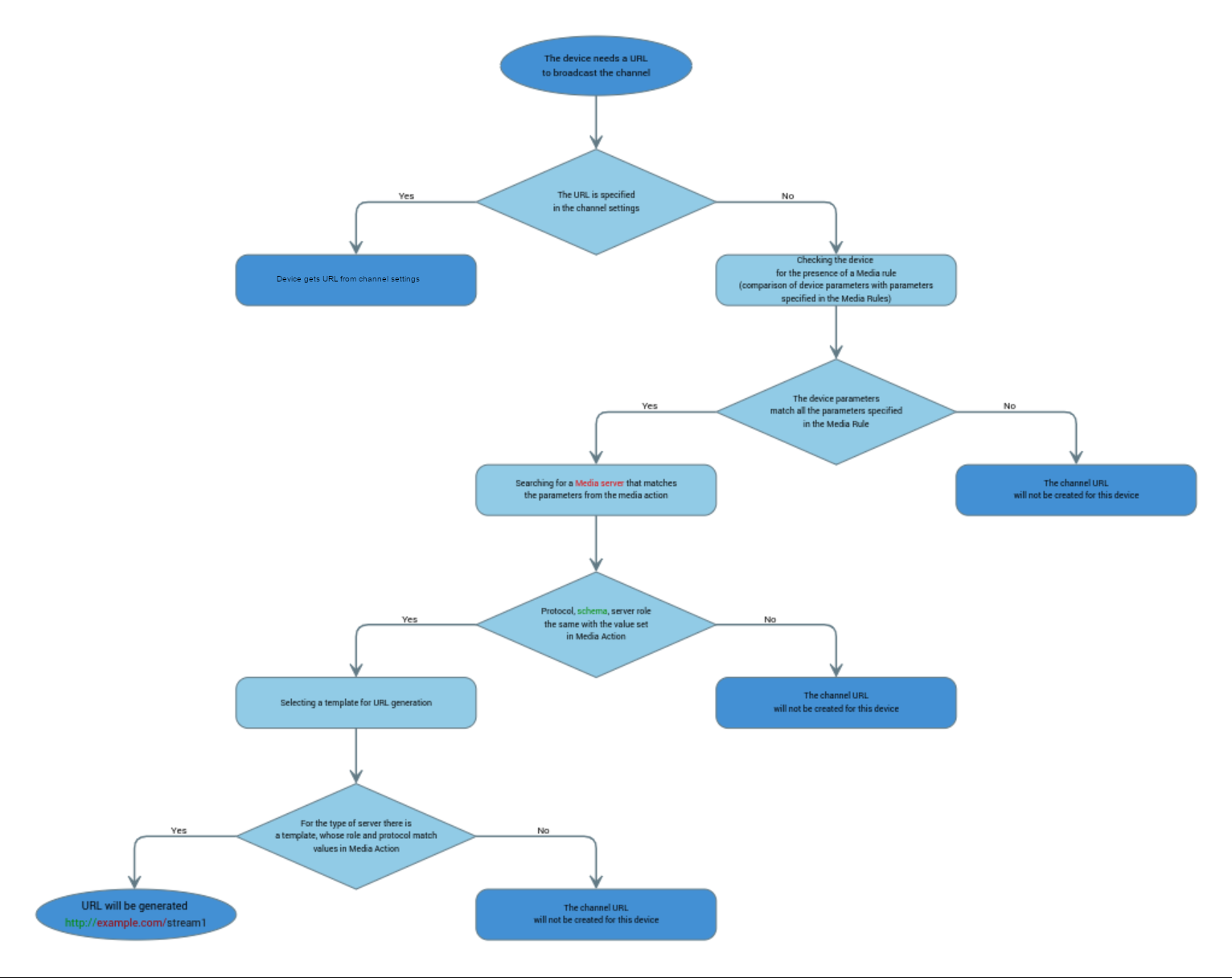
- The following requirements must be met for a device to receive a dynamic URL:
In the channel settings, the URL field should be empty;
A Media Rule must be created;
The channel must be added under Media in the Media server settings;
A Pattern must be created
Media rule
Media rules determine the choice of a particular media action depending on the type and parameters of the device requesting a link to the stream and, if necessary, the parameters of the provider associated with the device.
The Media Rules section of the TMS provides a prioritized list of rules: when a device contacts the TMS for a content link, the rules are searched from top to bottom. The first complete match of the parameters of the rule, through which the search is performed, with the parameters of the requested device completes the search, and after that the media action corresponding to this rule is associated with this device.
When creating a media rule, you can specify one or more device parameters. Fields marked with * are mandatory.
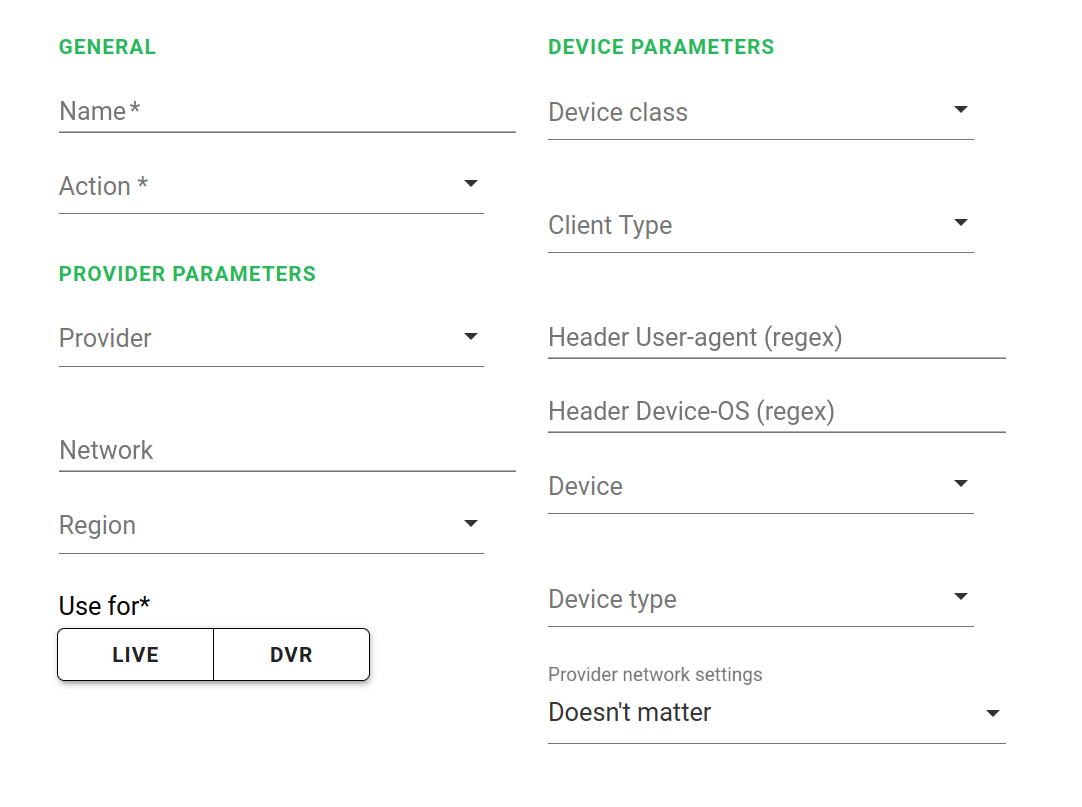
General
- Name:
Name of the rule.
- Action:
The media action that will be associated with client devices that meet the requirements of this rule.
Provider settings
- Provider:
Provider to whose devices rule should be applied. Selected from the drop-down list.
- Network:
The networks whose devices the rule should be applied to. You can specify one or more networks, each either as a subnet (in the X.X.X.X/YY format) or as a single IP address (in the X.X.X.X/32 format). To add a network, type it into the field and press Enter, or paste a comma-separated list of networks. The rule is applied to a device if it is located in at least one of the specified networks.
- Region:
The region for which the rule should be applied.
Device parameters
- Device class:
The device class the rule should be applied to. This field is a drop-down list containing the following device classes:
stb;
phone;
web;
tv;
tablets.
- Client type:
The type of client application this rule should be applied to. This field is a drop-down list containing the following application types:
tms_client;
tvip_native;
tms_portal;
tvip_native_nacl.
- Header User-agent:
The User-agent HTTP header of the client device the rule should be applied to. This field is filled using a regular expression.
- Header Device-OS:
The Device-OS HTTP header of the client device the rule should be applied to. This field is populated using a regular expression.
- Device:
The UID of the client device which this rule should be applied to.
- Device type:
The type of device the rule should be applied to. The field is a drop-down list containing the names of vendors and models of devices previously connected to the TMS.
- Used for:
Live - apply the rule when requesting links to live broadcasts, DVR - apply it when requesting access to DVR archive. Both options can be selected simultaneously.
- Provider network settings:
Determines the applicability of the rule to the device depending on its presence in the ISP’s IP network. Three options are available:
Device on provider network
The device is not on the ISP’s network
Doesn’t matter
Media action
Media Action defines the parameters and properties that a media server must meet in order to broadcast to devices matching an associated media rule.
When creating a media action, the following fields must be filled out:
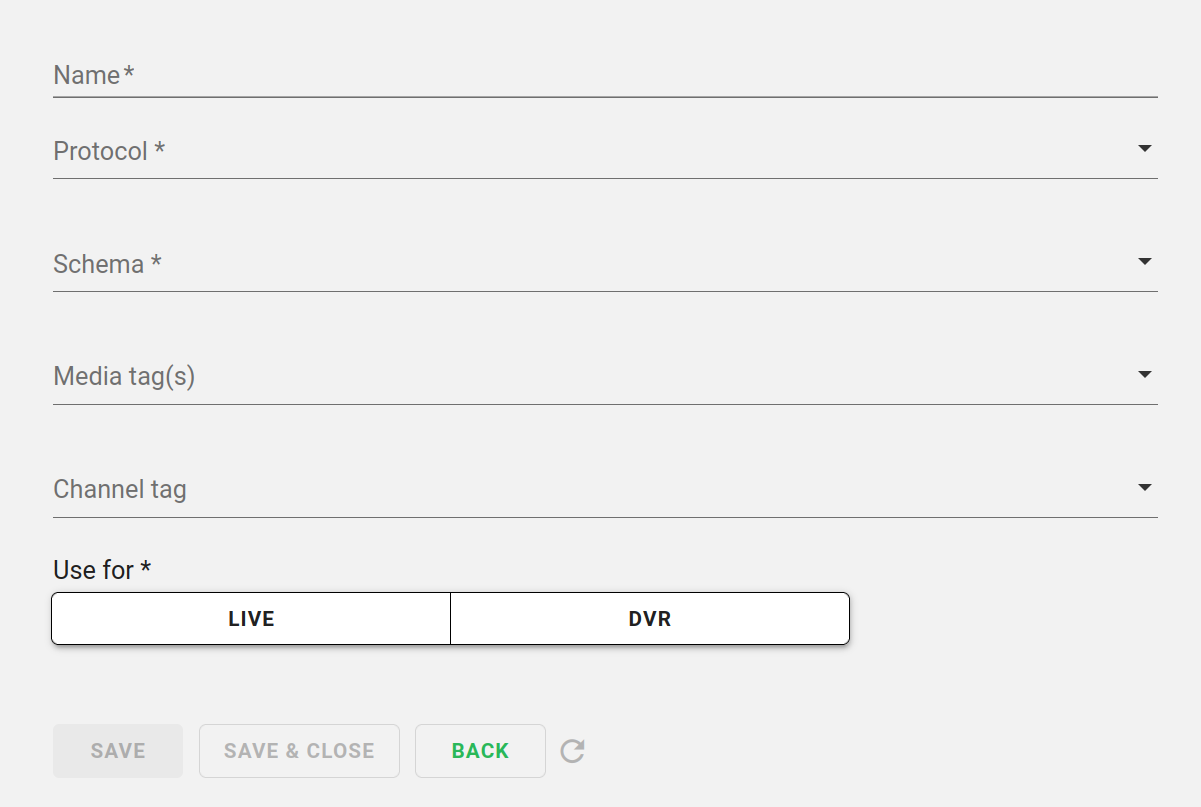
- Name:
Name of media action.
- Protocol:
The streaming protocol which selected media server should support.
- Schema:
The stream URL schema that the selected media server should use.
- Media tag(s):
A special tag that is used to select a media server. When assigned to a media action, it allows you to limit its selection of media servers to only those marked with this tag. This is necessary in case the matching scheme and protocol for specialization of a media action is not enough (for example, when links to a channel for different platforms differ only in the name of the resource on the media server). It is possible to use several tags, in which case the list will be compiled from the servers marked with any of them.
- Channel tag:
The tag to whose channels the rule will be applied. If the device requesting a channel meets the criteria of a media rule, but the tag of the channel it is requesting does not match the tag specified in the media action, the media rule will be determined to be unsuitable, and the selection of a suitable rule will continue from the next in the list.
Media server
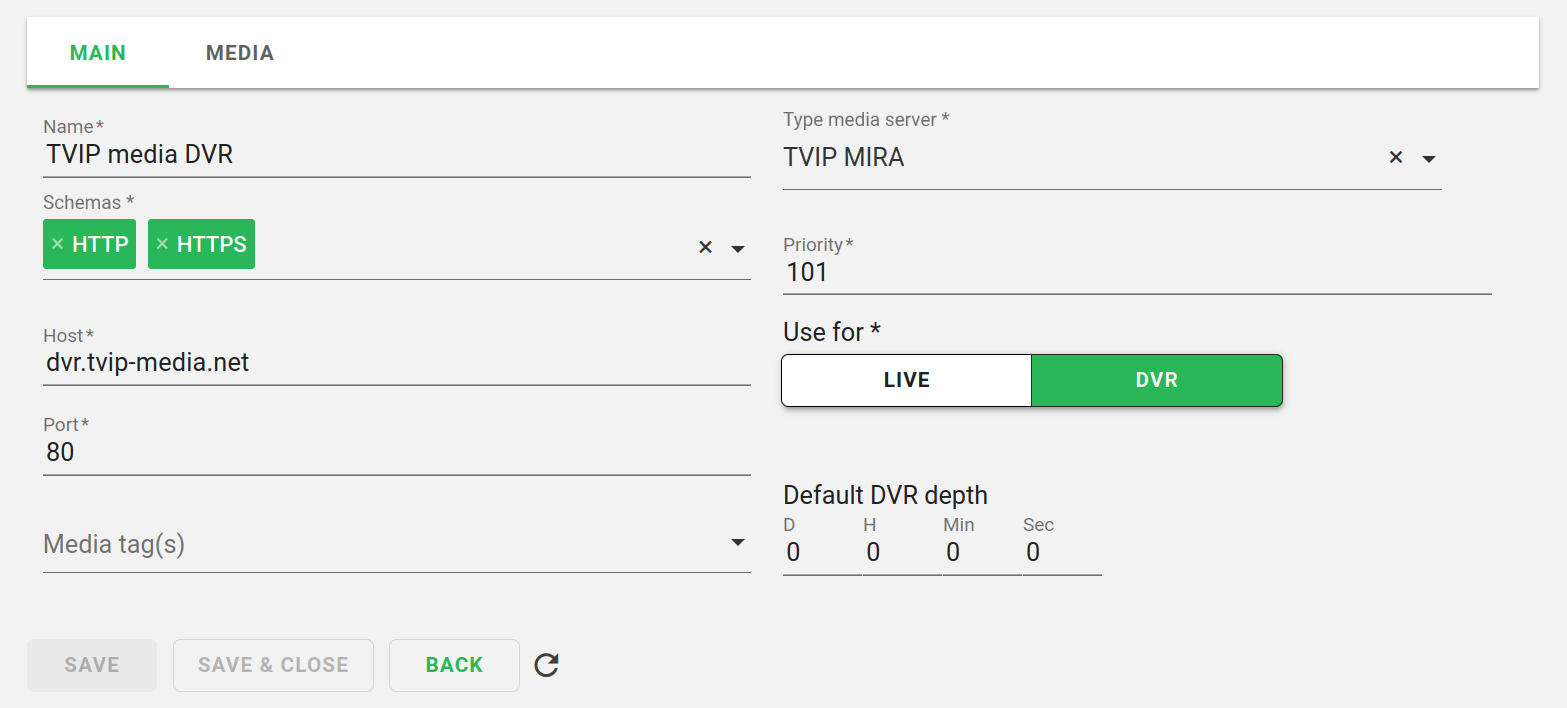
Media server - description of the server, which has a specific type, supported schemes (http/https), the address of connection to the server, its priority and the list of channels available on this server (in the Media tab), which this server contains.
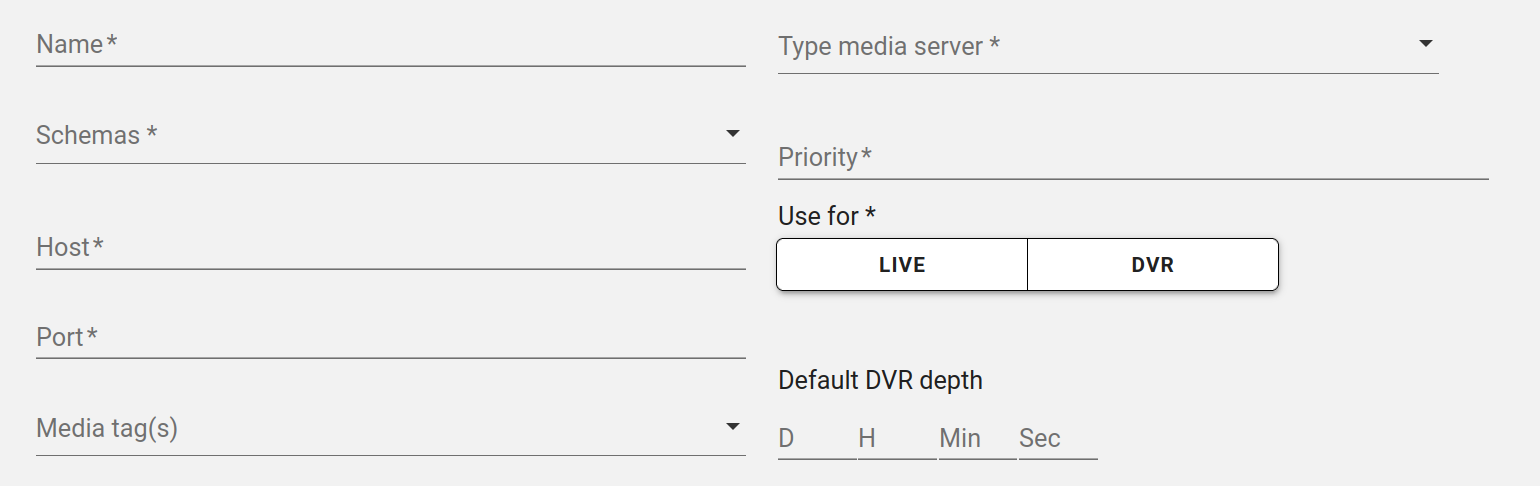
- Name:
Server Name.
- Schemas:
The schemes that are supported by the server. The following values are available: HTTP, HTTPS, UDP, RTP, RTMP. Multiple values can be selected.
- Host:
The IP address or domain name of the server.
- Port:
The port on which the server is listening for connection.
- Media tag(s):
A special tag that allows you to limit the selection of servers from a set of ones matching the media action scheme and protocol by some arbitrary criterion. It is possible to use several tags.
- Media server type:
Media server type that defines the URL pattern used by this server, as well as the list of streaming protocols it supports. It is created in the Media Server Types settings.
- Priority:
Server selection priority. The server with higher priority value will be preferred in the selection process.
- Roles:
Live and/or DVR.
- DVR depth by default:
Default DVR depth for streams available on the server. The setting makes sense if the DVR role is configured for the server.
Attention
The DVR depth from the media server settings will be applied only if the archive depth is not specified in the channel and media settings.
Warning
If media rules are used, the ARCHIVE rate plan setting is ignored.
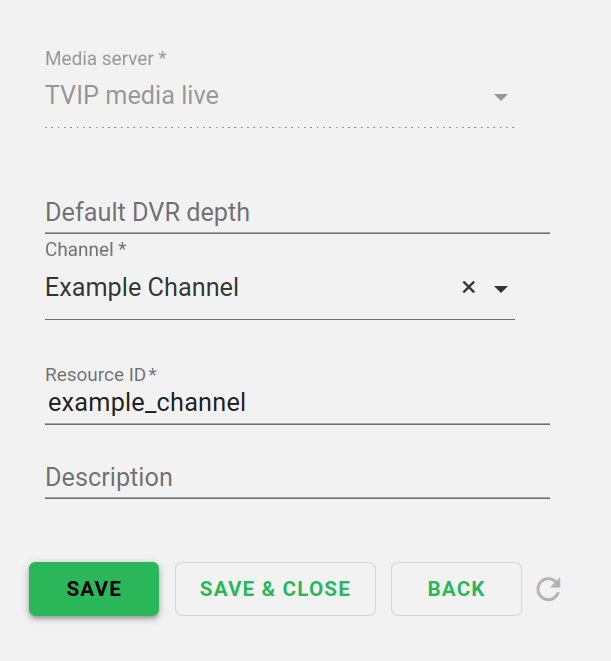
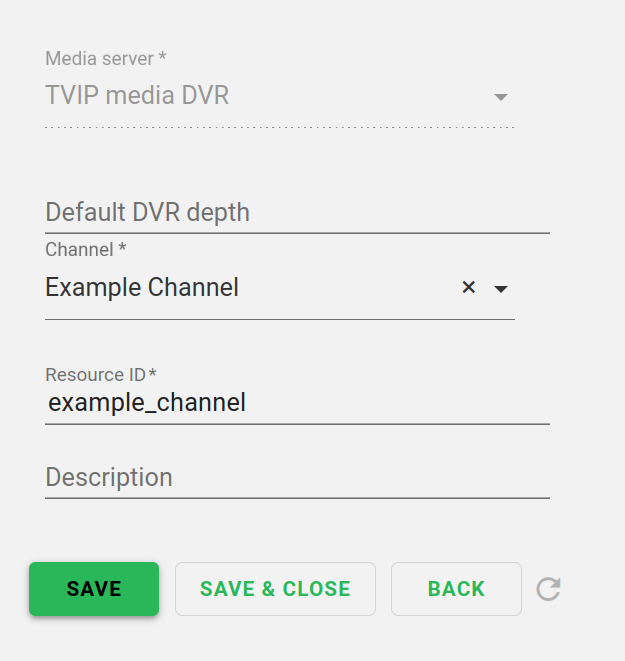
On the Media tab you can add channels that are broadcasted by this media server.
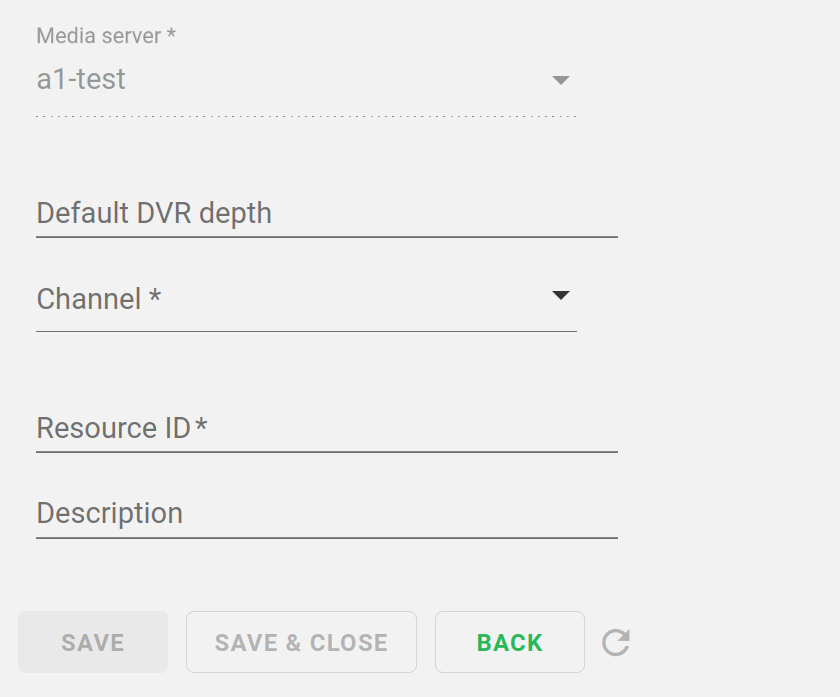
When binding a channel to a server this way, the following fields are available, some of which are mandatory:
- Media server:
A drop-down list for selecting a media server. When filled in from the media server creation interface, this field is blocked for editing - in this case it is bound to the server being created by default.
- Default DVR depth:
The depth of the DVR that will be applied to this channel.
Attention
The archive depth from this field will only be applied if the archive depth is not specified in the Channel settings.
- Channel:
The name of the channel in the TMS. This field is mandatory. When setting Media in the channel creation interface (on the Media Resources tab), this field is blocked for editing - in this case it is bound to the created channel by default.
- Resource ID:
System name of the channel on the media server. It’s used when creating a link to the stream - in the URL pattern the <resource> attribute is replaced with its value. This field is mandatory.
- Description:
Some description of the channel.
Media server type
Media server type determines which streaming protocols are supported by the server and what pattern is used to generate the final URLs of the streams that it broadcasts. Since these parameters are largely determined by the software used for streaming, it is convenient to use the names of specific implementations or vendors to identify media server types. For example, TVIP Mira and Flussonic are considered types of media servers.
- By default, there are 3 server types already added to the TMS:
Multicast;
TVIP MIRA;
Flussonic.
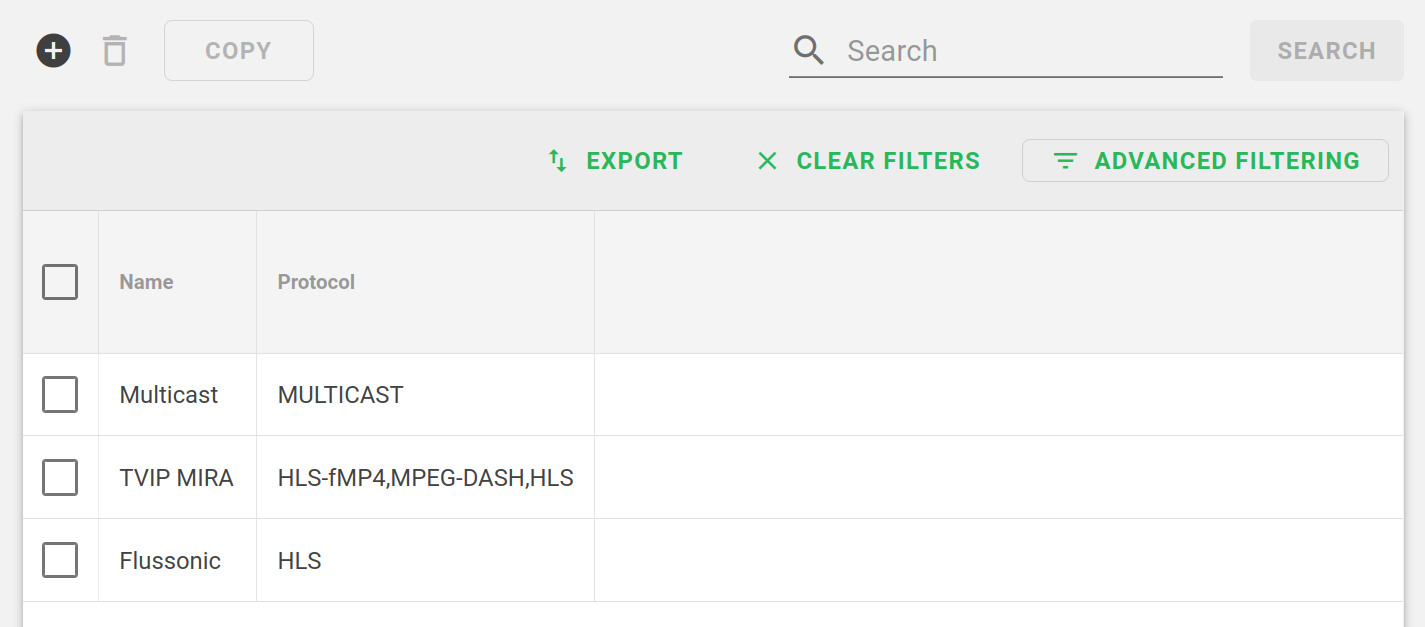
You can add new types of media servers as needed.
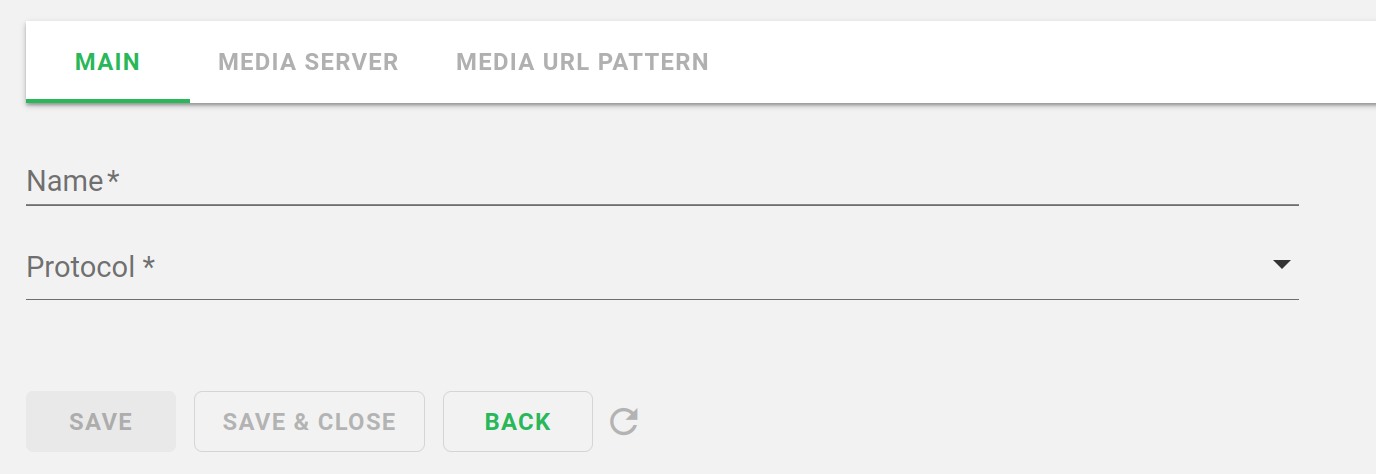
- Name:
Name of server type.
- Protocol:
Protocol for server type: HLS, DASH, RTSP, RTMP. Multiple values are available.
Pattern
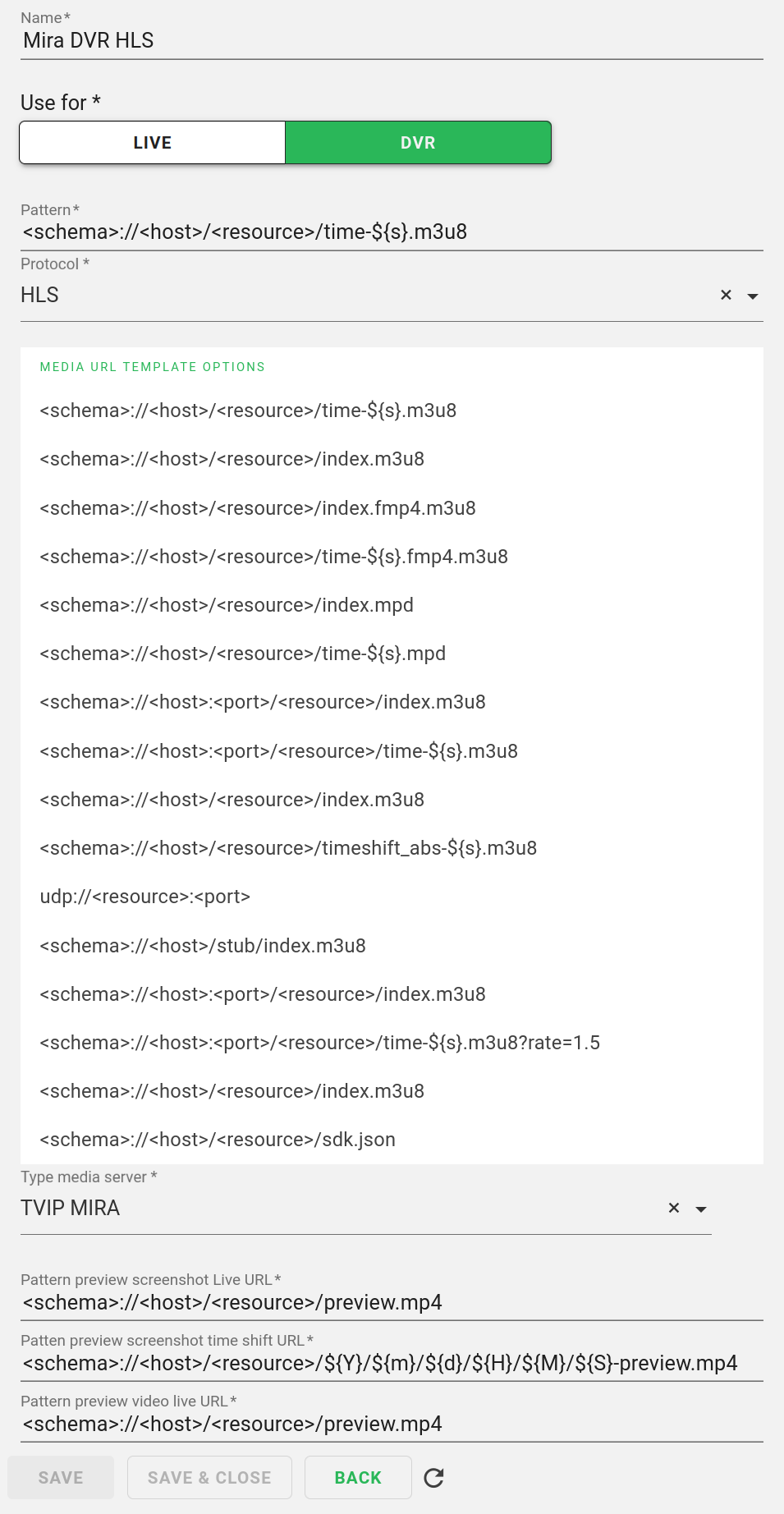
This section provides patterns that will be used as refereces to generate the final URLs for streams and preview images. Basic patterns are added by default.
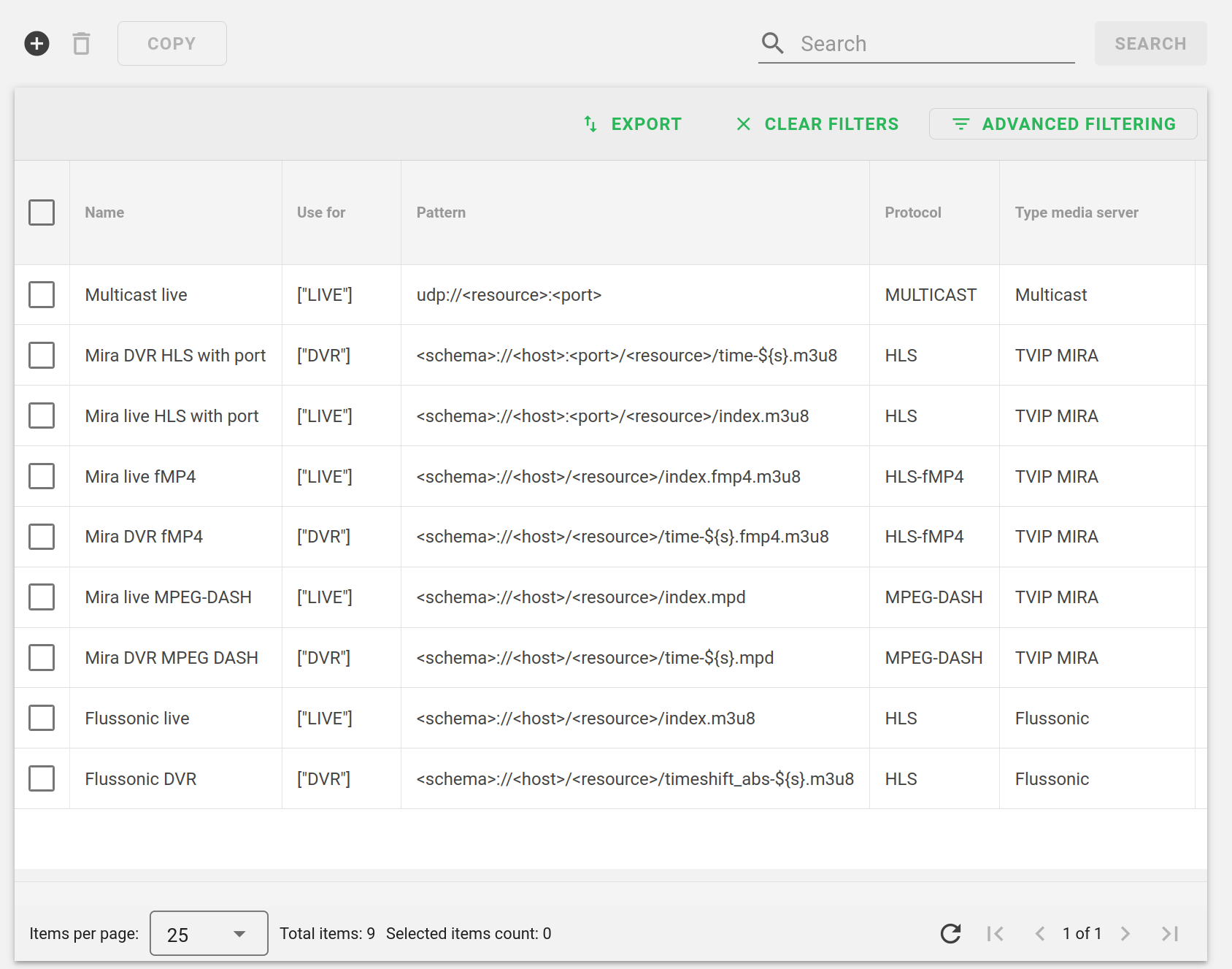
Creation of new patterns is available. When creating a new pattern or editing a previously created patterns, all available fields are mandatory.
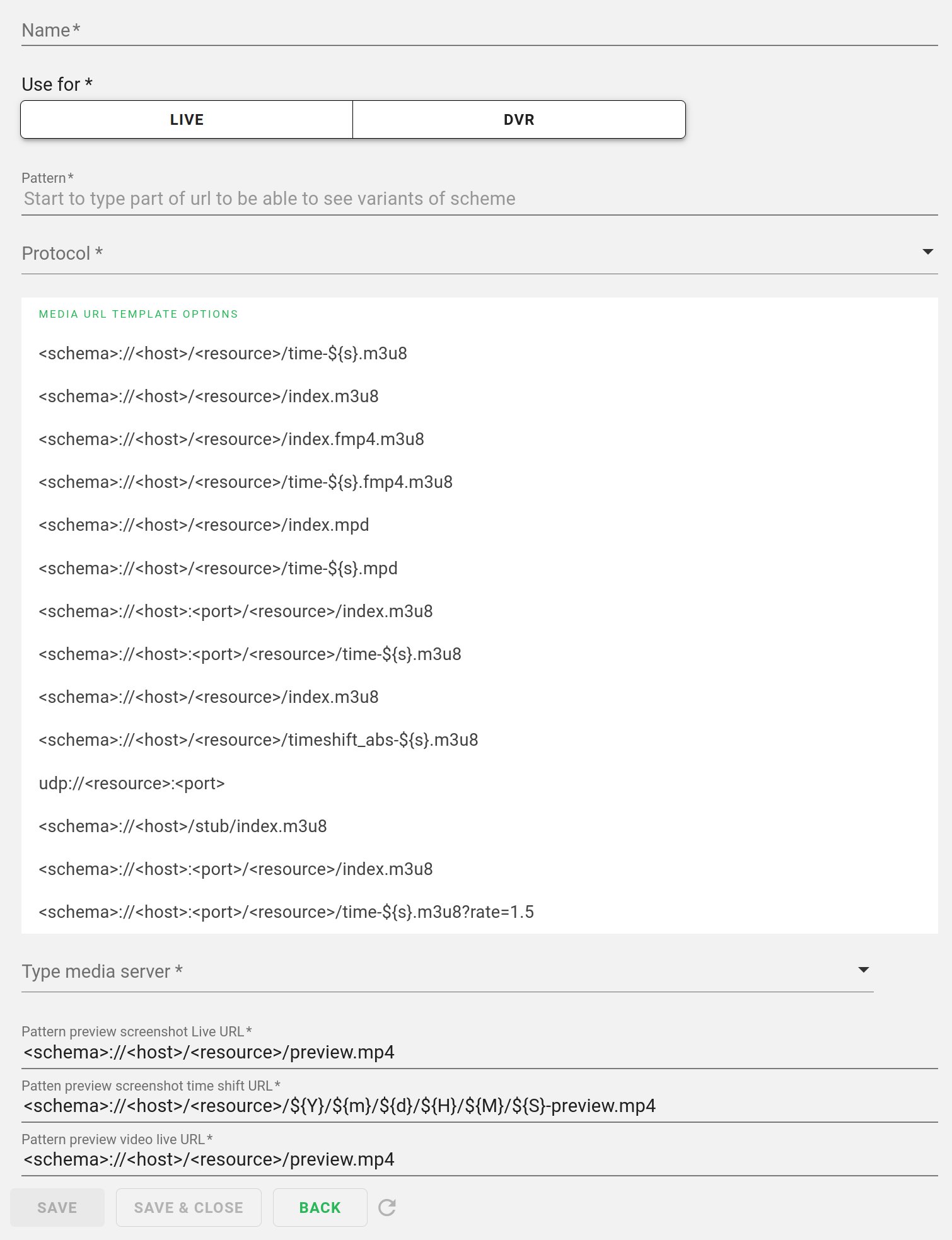
- Name:
Name of the pattern.
- Pattern:
Pattern for the final URL of the stream. You can set it yourself or select it from prepared pattern.
- Protocol:
Streaming Protocol.
- Media server type:
The type of server for which the pattern can be used.
The following fields define the format of the preview image links. The templates listed in them are first passed by the TMS to the client device (as part of the channels.json file that contains channel information), after which it uses them to generate links for the preview images it requests from the streamer.
- Pattern preview screenshot live URL:
The format of a link to a preview image of a live broadcast. It’s transmitted to the client device from the TMS along with channel information (in the preview.screenshot.live_url property of channel objects contained in channles.json) - based on this template the device will form a link to the preview of the live broadcast, and then use it to request this preview from the media server. Default value: {schema}://{host}/{resource}/preview.mp4.
- Pattern preview screenshot time shift URL:
The format of the link to the preview image from the archive that is displayed on rewind. It is passed to the client device from TMS together with information about the channel (in the preview.screenshot.tshift_base_url property of channel objects contained in channles.json) - based on this template, the device will form a link to a preview image of a certain moment in the broadcast archive when rewinding, and then use this link to request a preview from the media server. Dynamic variables are used to set the time range. Default value: {schema}://{host}/{resource}/${Y}/${m}/${d}/${H}/${M}/${S}-preview.mp4.
- Pattern preview video live URL:
The format of a link to a preview image loaded every few seconds to create a frame-by-frame video. Transmitted to the client device from the TMS along with channel information (in the preview.video.live_url property of the channel objects contained in channles.json). Default value: {schema}://{host}/{resource}/preview.mp4.
Example of use
Let’s create dynamic URLs for the Example Channel, using the following parameters:
For TVIP S-Box Media Centers - Live and Dvr, HLS stream, HTTP scheme;
For Android TV - Live and Dvr, HLS stream, HTTPS scheme;
For mobile devices - Live and Dvr, HLS stream, HTTP and HTTPS scheme;
For Smart TV Tizen and WebOS - Live and Dvr, HLS stream, HTTP and HTTPS scheme;
For all other devices, Live and Dvr, HLS stream, HTTP scheme;
In the current example, the servers for Live and DVR will be different.
Select the media server type TVIP MIRA.
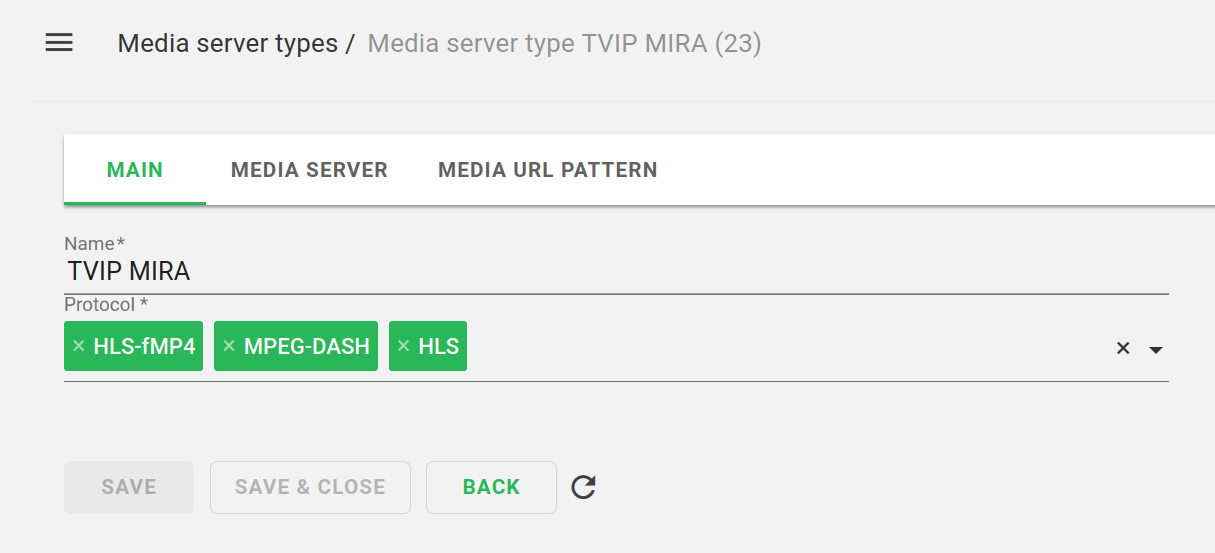
Add Live and DVR servers:
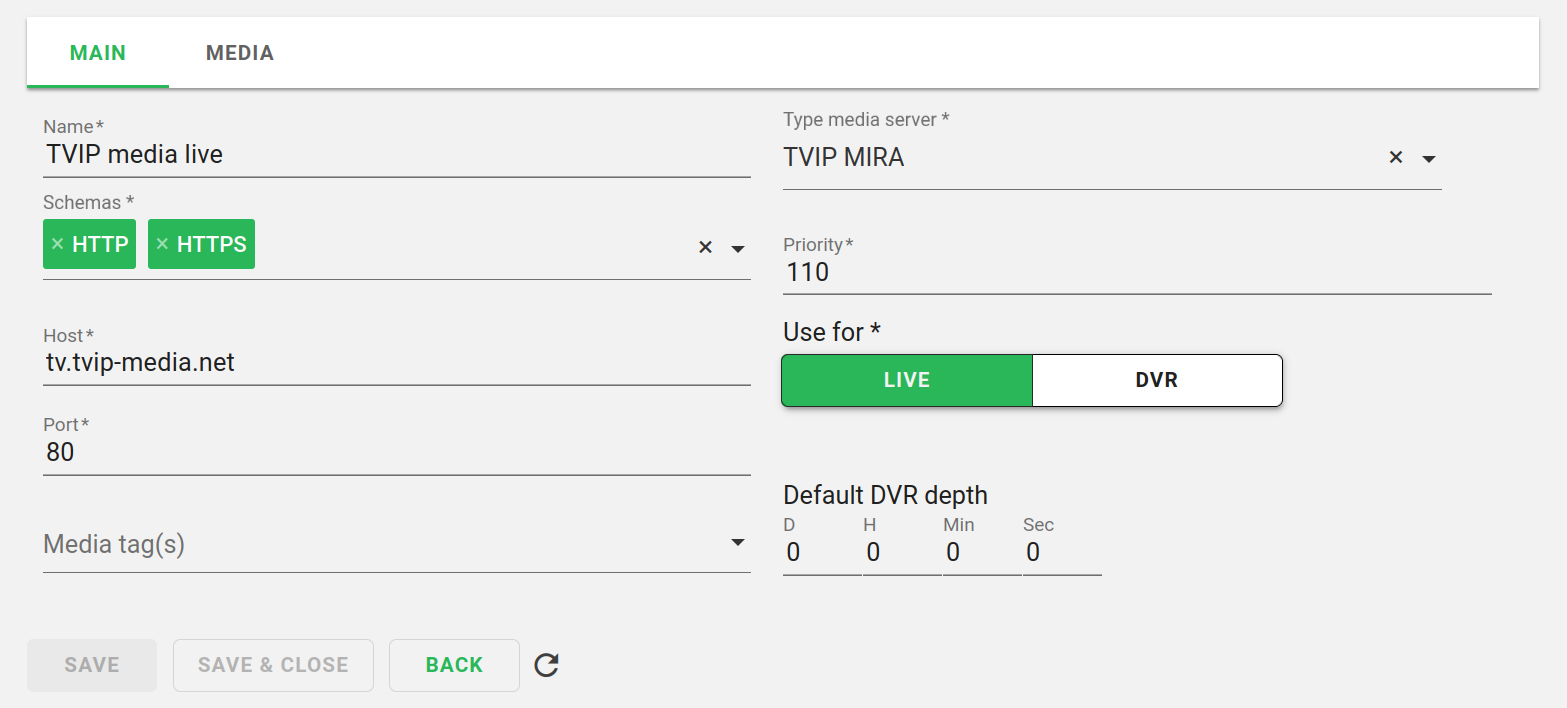
And add the Example Channel to the Media section of both created media servers:
Let’s make sure there are suitable Dvr and Live templates for our TVIP MIRA server type:
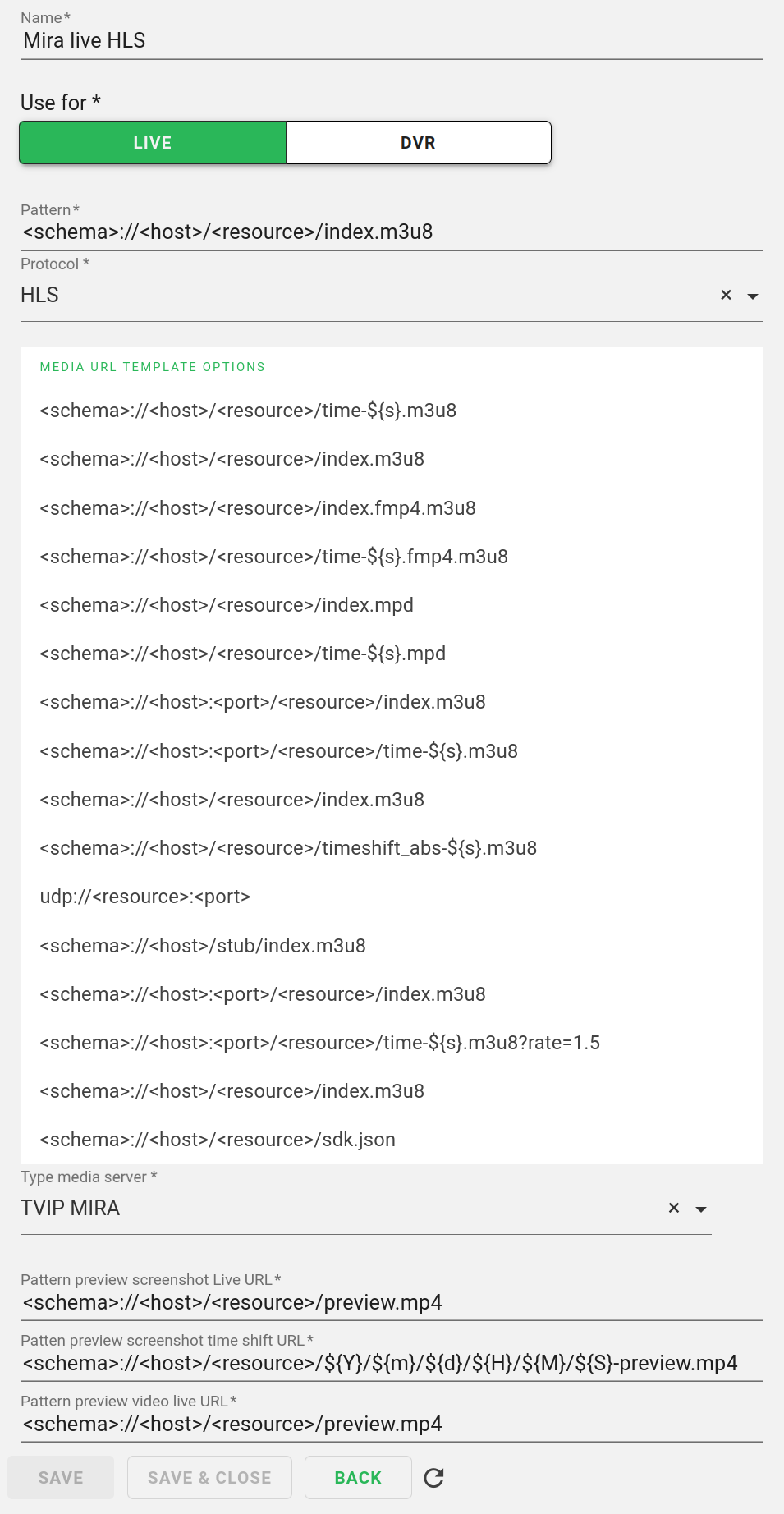
We’ll create a separate media action for each device type:
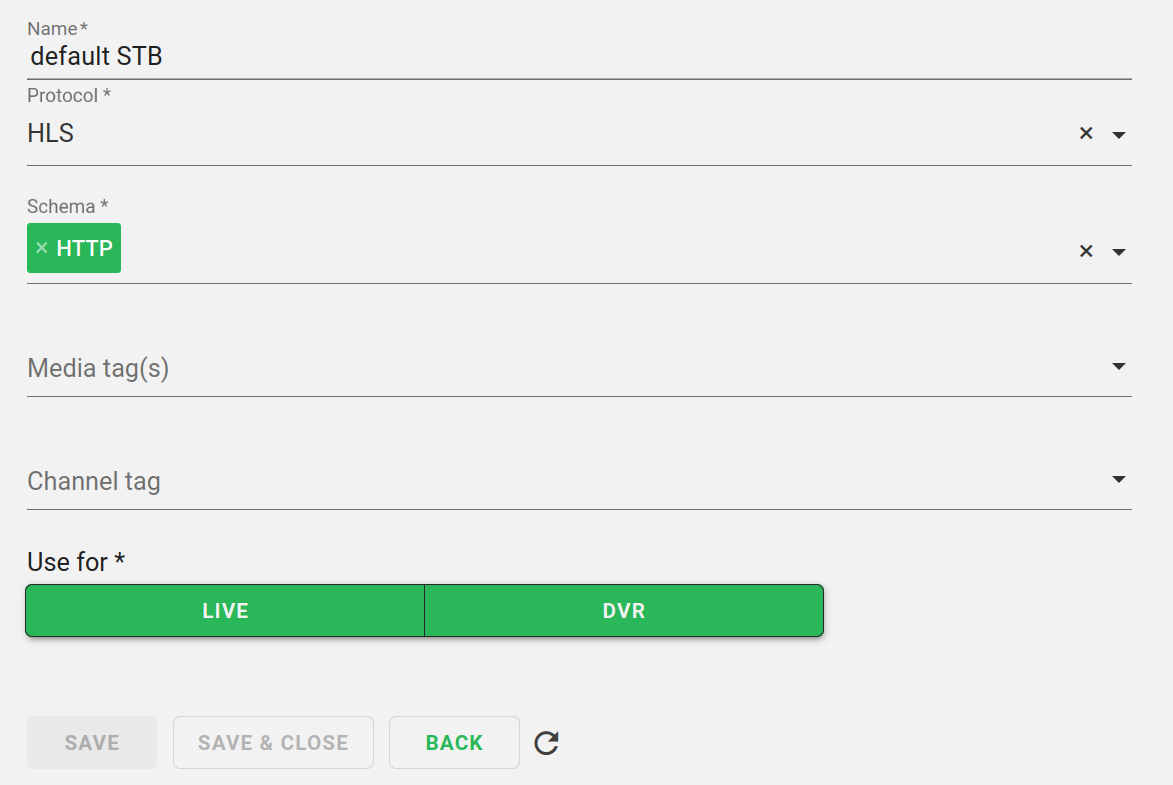
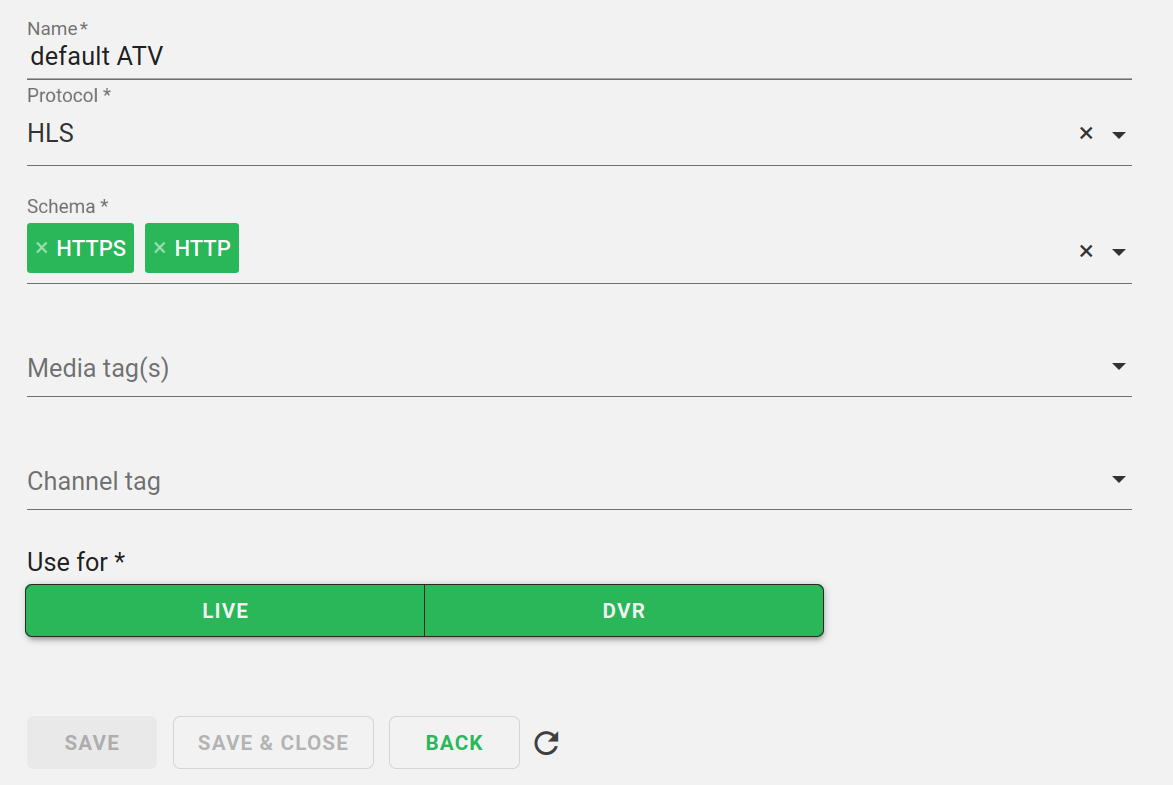
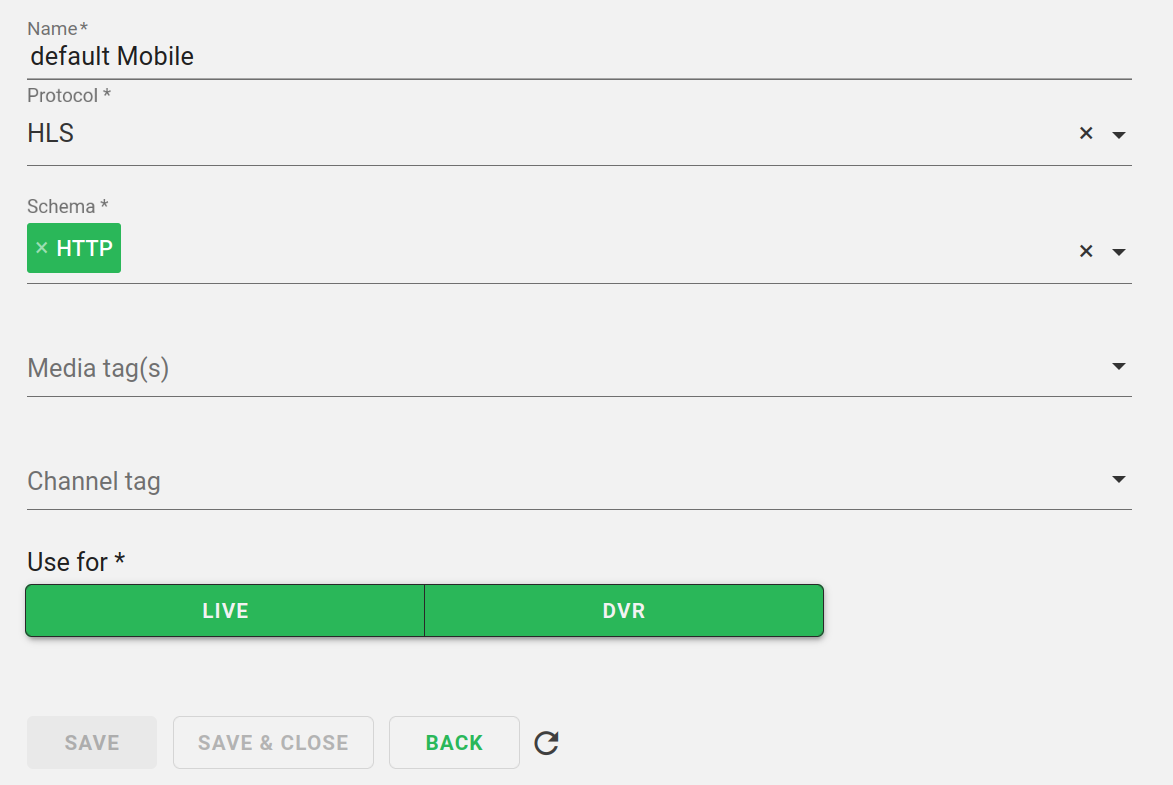
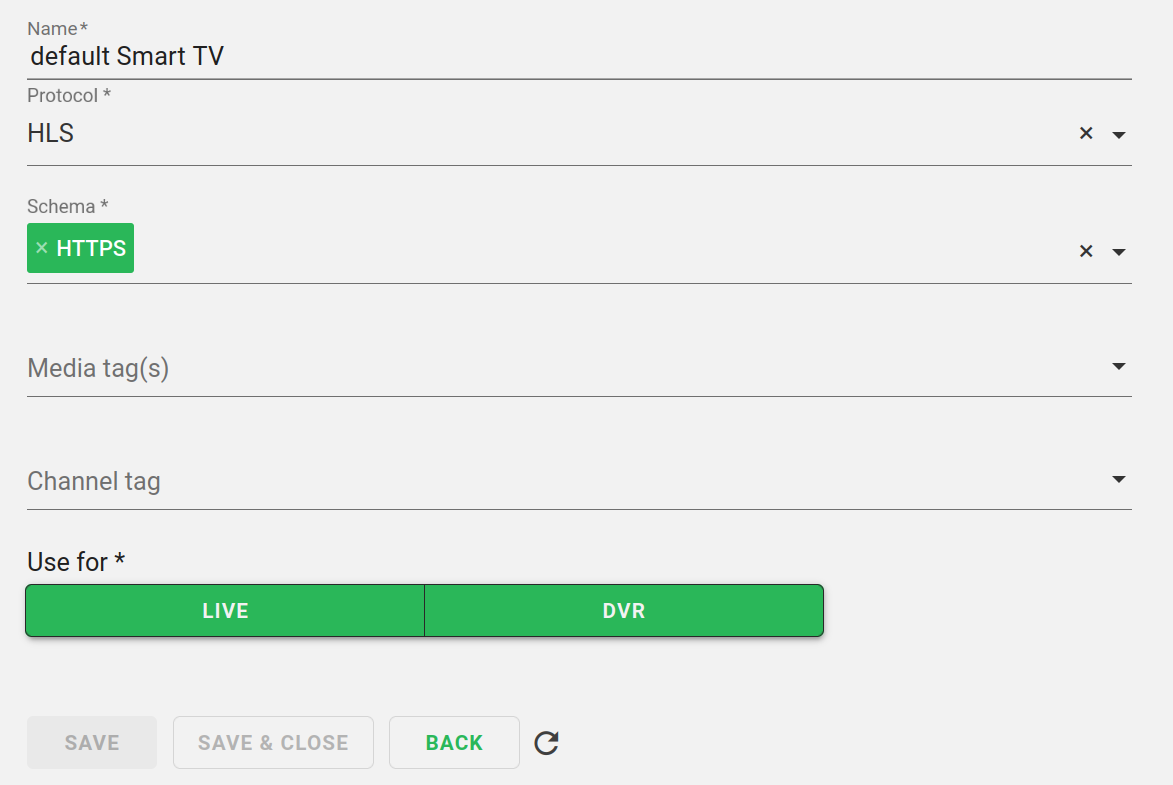
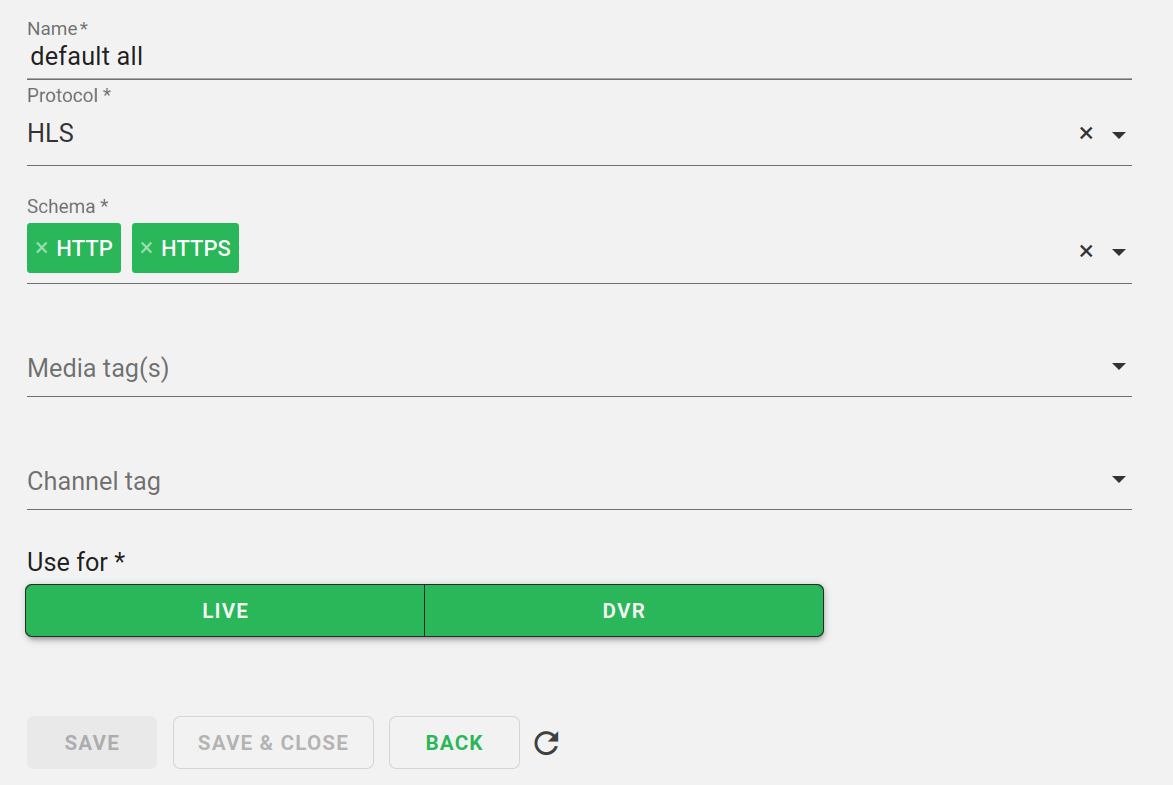
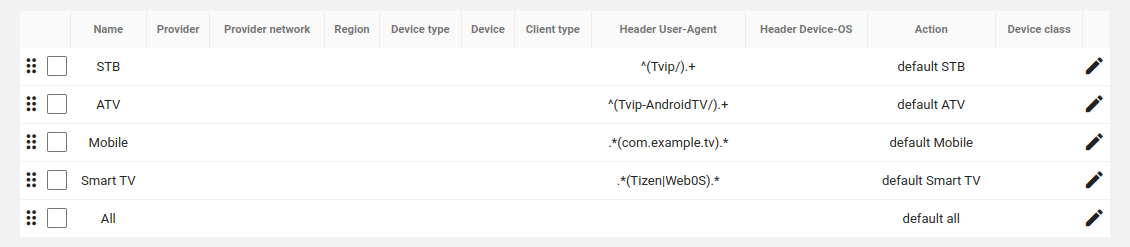
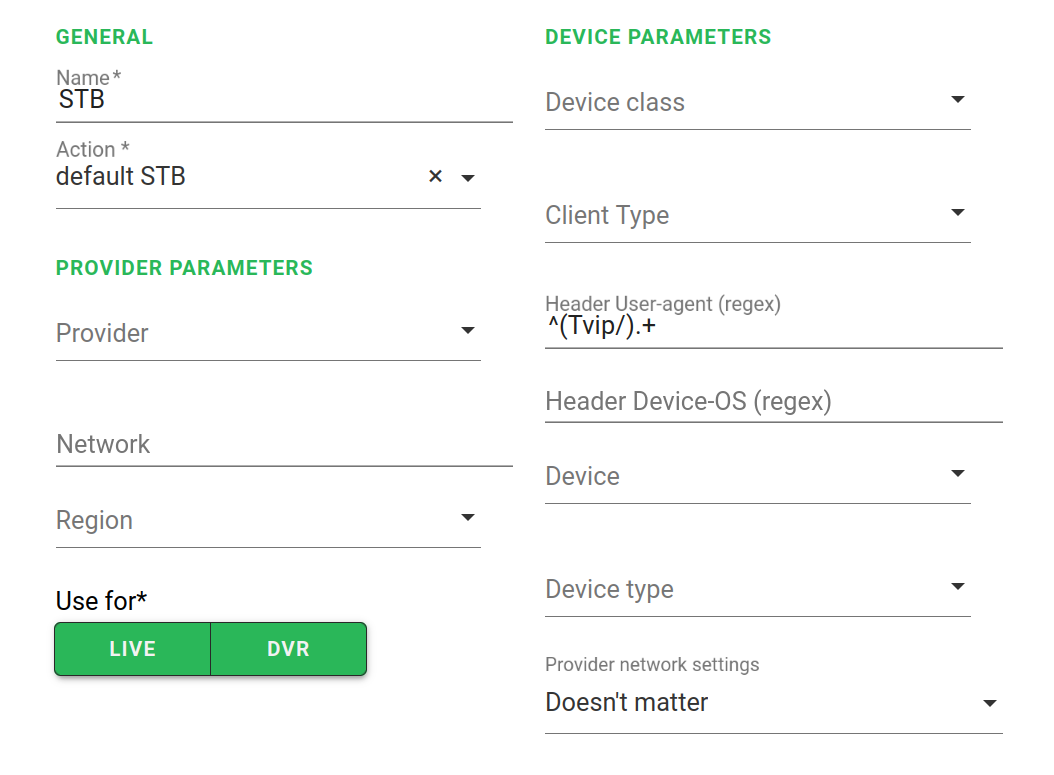
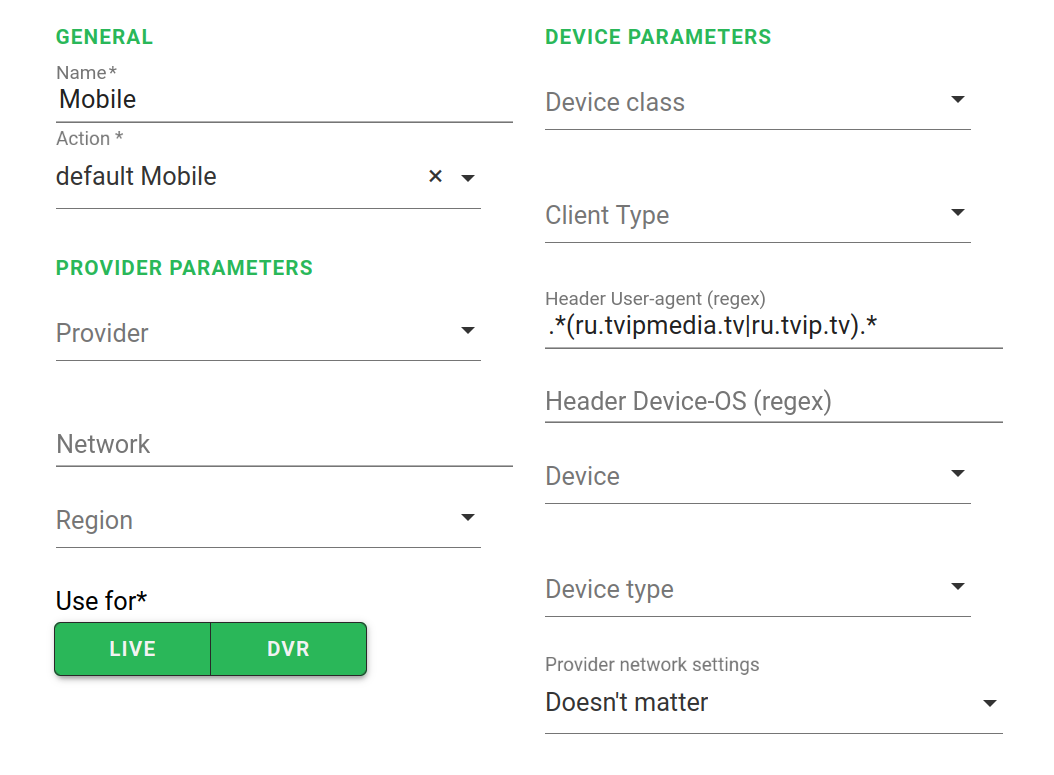
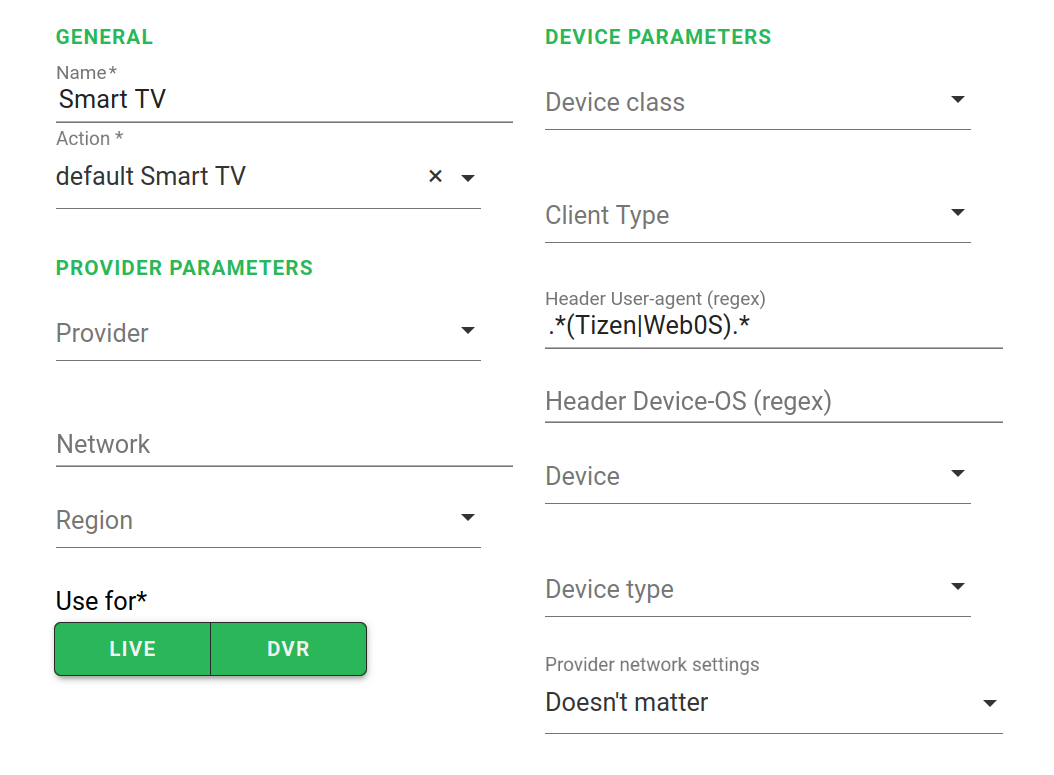
Now we can create a media rule for each of the device types. We will identify the device by the User-Agent header parameter.
For Tvip S-Boxes:
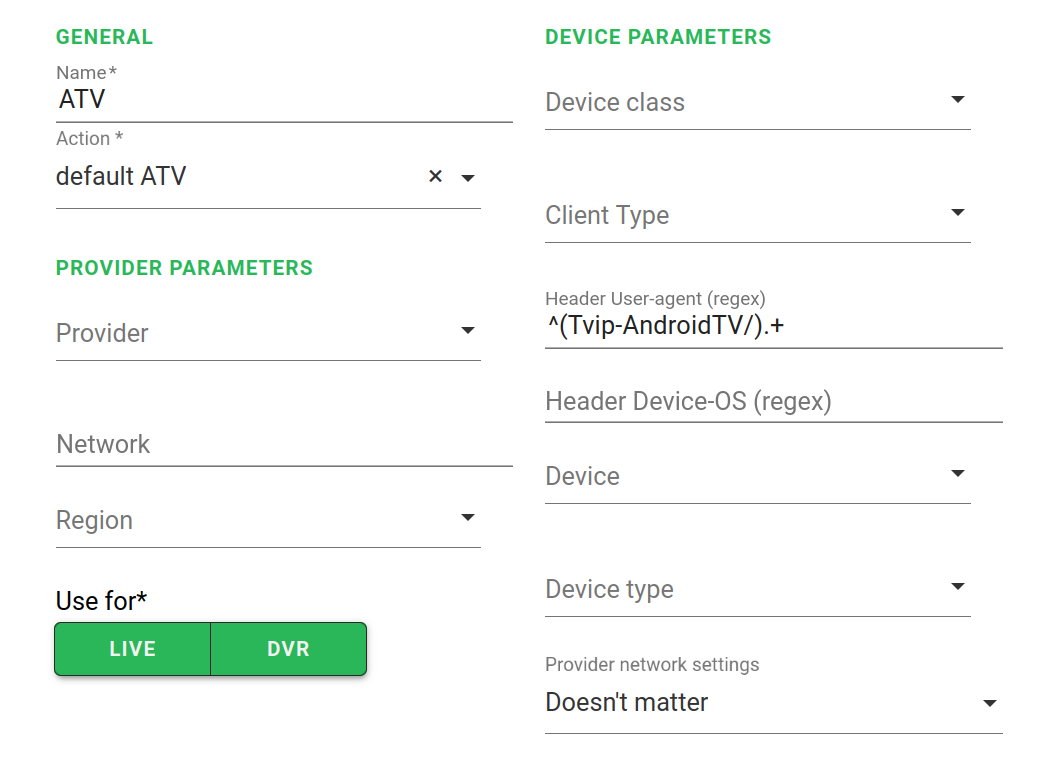
For Android TV:
For mobile devices:
For Smart TV:
For all other devices:
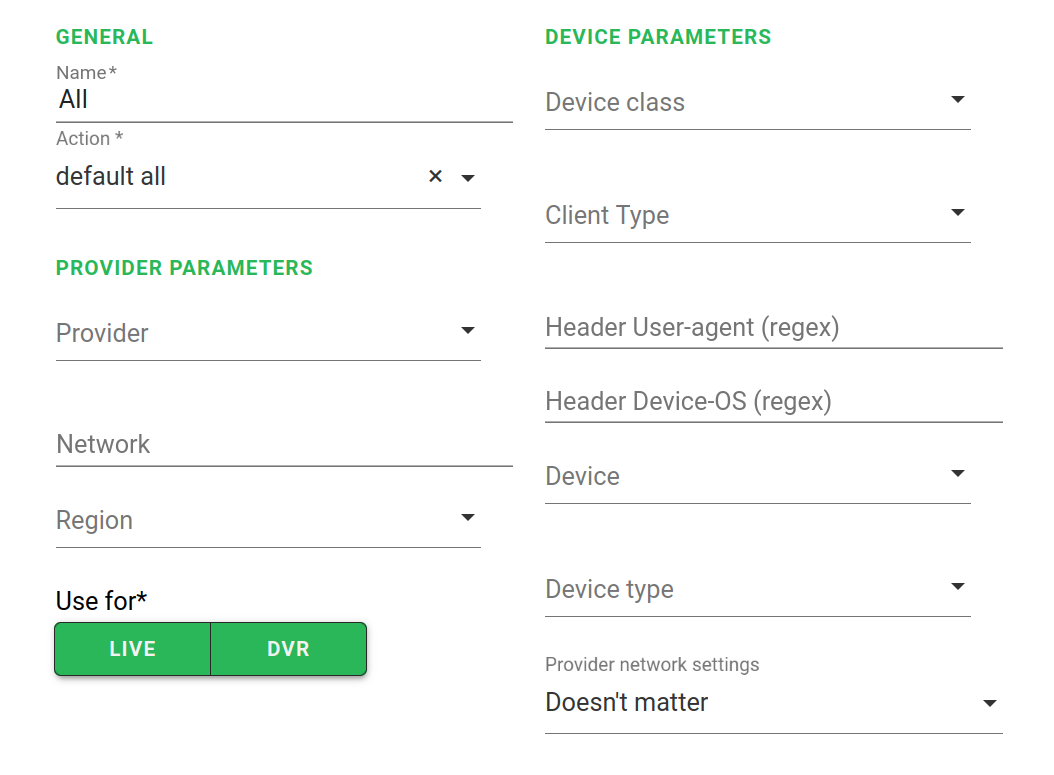
Media rule created for other devices should be at the bottom of the list, as it should have a lower priority.